
Two Practical Approaches to Handling AI Builder Confidence Scores in Power Automate
— Luis Fano-Rojas
Working with AI Builder in Power Automate? If you’ve struggled with managing confidence scores from document processing models, here are two practical ways to handle high and low-confidence fields without ending up with a mess of parallel conditions in your flow.
When calling a document processing model in a flow, the response from the action is a single JSON object, which makes it difficult to check multiple confidence scores without creating multiple parallel conditions to check each value extracted. One way I found to streamline this process is by creating an array of objects and creating an object per field being extracted. Each object contains the field name, field value, and confidence score.
[
  {
    "Field Name":"FullName",
    "Field Value" : "John Doe",
    "Confidence": 0.98
  },
  {
    "Field Name":"FullName",
    "Field Value" : "Jane Doe",
    "Confidence": 0.97
  }
]
Array Variable Setup
In Power Automate, you will initialize an array variable after the action that calls the document processing model, and for each field the model extracts, you will create an object in the array. You will map the dynamic content generated from the document to the corresponding field in the object. The field name would be the only static value in each object.
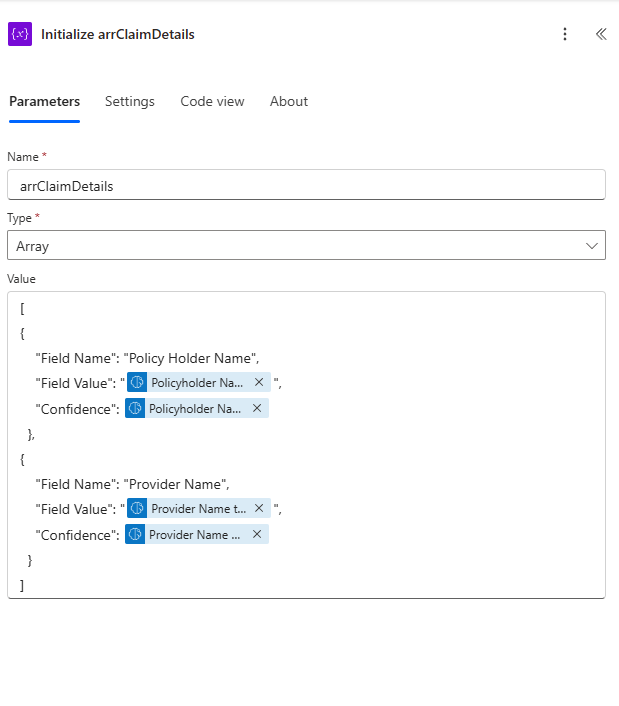
Next, I will outline two different approaches to handling confidence score checks.
Approach 1: Granular Approach
In this approach, we will check the confidence score of each field extracted. With this approach, we can set specific actions to run if a score is low. Add a Filter Array action. Add the array variable to the From field, and in the condition, use the following query:
@not(equals(@{item()?['Confidence']},'null'))
After you filter out the null values, you will create an Apply to each action and set the body of the Filter Out Nulls action as the For Each value.
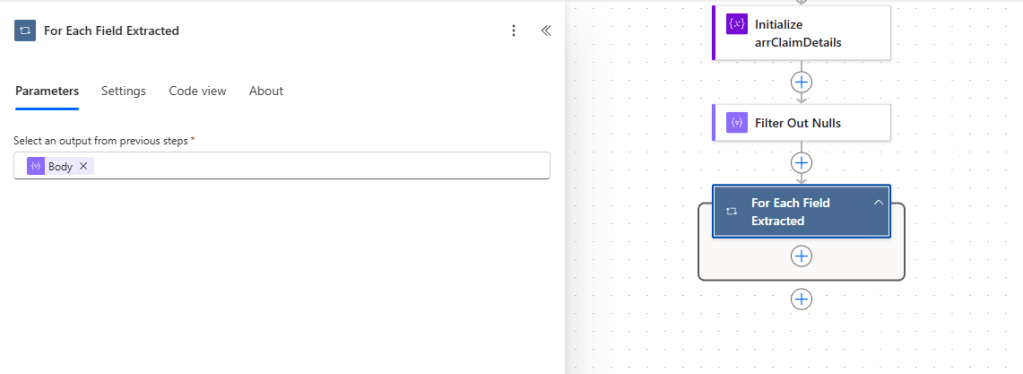
The next step would be to add a condition that checks the confidence score of each field object in the array. Here, you can set a static confidence score value to check against, or you can use an environment variable that will allow you to change the score to check against based on the environment you are in.
items('For_Each_Field_Extracted')?['Confidence']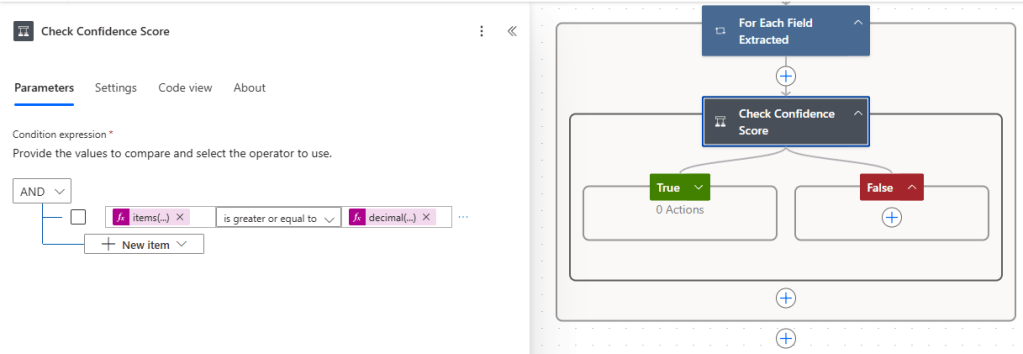
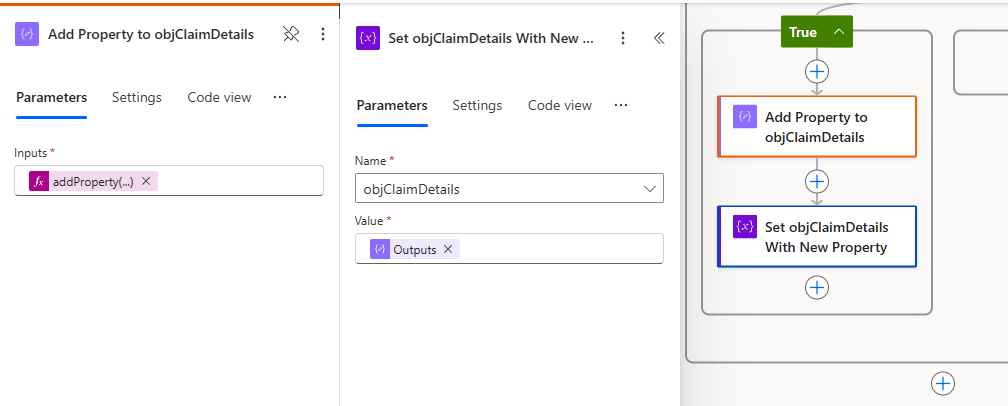
If a field has a confidence score that meets the criteria check, we will add that value to an object variable that will then be used to map the extracted field values to the fields of the source you want to write to. To set this up, you will initialize an empty object variable. After creating the object variable, you will add a compose action in the True branch.
The compose action will use the addProperty expression to add the property name and value to the object variable you created. Since the field name is a field in the objects we created, we can dynamically set the property name and value here. After adding the property in the compose action, you will set the value of the object variable to the output of the compose action. This will update the object variable and keep track of the properties previously added.
addProperty(
   variables('objClaimDetails'),
   items('For_Each_Field_Extracted')?['Field_Name'],
   items('For_Each_Field_Extracted')?['Field_Value']
)
Now, for values that fail to meet the criteria. In the False branch, you can determine the steps to take with each value. Here are some of the steps I have implemented in the past.
Storing the values in an array
Storing these values in an array allows you to easily generate an HTML table of the low-confidence fields. This HTML table will then be used in an email that is sent to a user so that they can address the fields that are returned with low confidence and add those values to the record.
Utilize AI Prompts to retrieve the value
If a document processing model retrieves a field with low confidence, you can have a process in place to use AI Prompts to retrieve the desired value. This approach would best fit documents that don’t have a fixed layout. The types of documents that would best fit this scenario would be a home purchase contract, legal agreements, and offer letters. These documents benefit from this fallback because they’re often lengthy and less structured, making key values harder to locate manually. To set this up, you can either add the prompt as a field in the object you create for each extracted value or you can store the prompts in a Dataverse table and call them dynamically by filtering the table using the field name to pull in a specific prompt. Using this approach would require human review to check for accuracy.
After all the field objects have been checked, the next step is to map the high-confidence field to the fields in the target source. Since we’re using an object variable, you can use the following expression for each field with a high-confidence score.
variables('objVariable')?['Field_Name']
ex. variables('objClaimDetails')?['Provide_Name']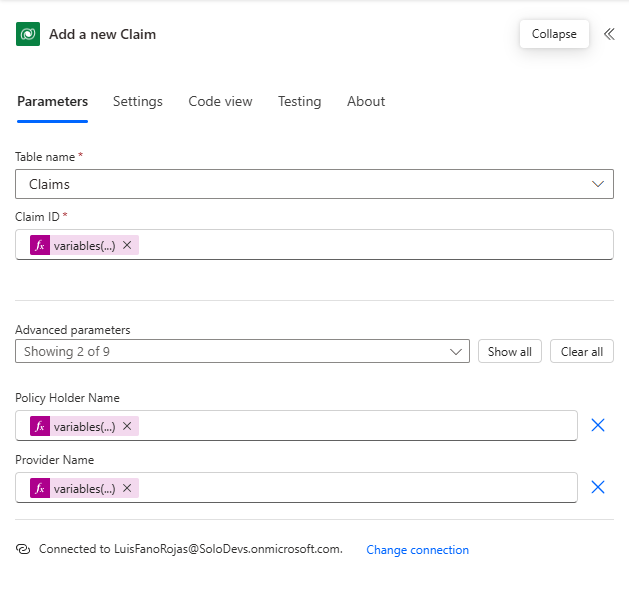
Approach 2: Bulk Processing
In this second approach, instead of checking the confidence score one by one, we use a filter array to separate the values that are greater than or equal to the desired confidence score. We do the same to get the fields with low confidence scores.
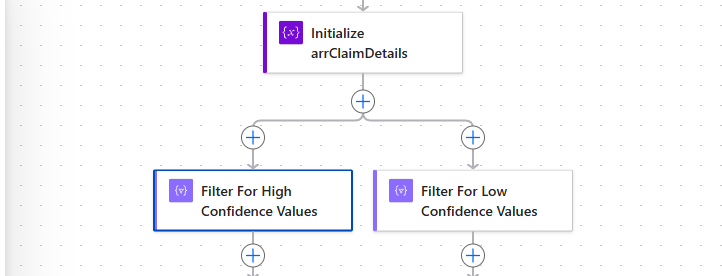
In this approach, we will run the high-confidence score and low-confidence score actions in parallel.
After filtering for the fields that meet the criteria on the high-confidence score path, we will add a Select action to create an object of the high-confidence fields and values.
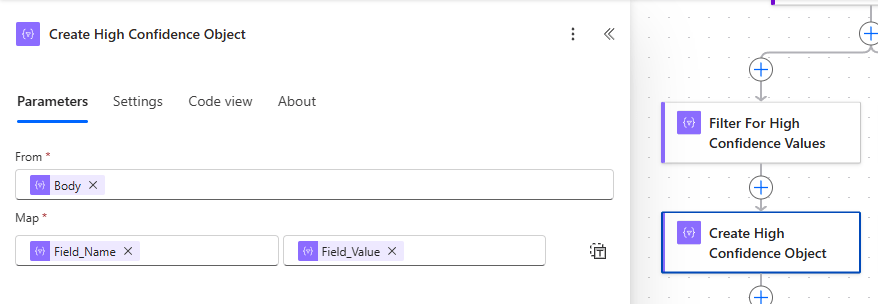
Once the object is created by the Select action, we can use the output to map the values to the fields in the target source.

Claim ID: body('Create_High_Confidence_Object')?['Claim_ID']
Policy Holder Name: body('Create_High_Confidence_Object')?['Policy_Holder_Name']
Provider Name: body('Create_High_Confidence_Object')?['Provider_Name']
On the low-confidence path, we will use the array of low-confidence values to create an HTML table to use in an email to an end user.
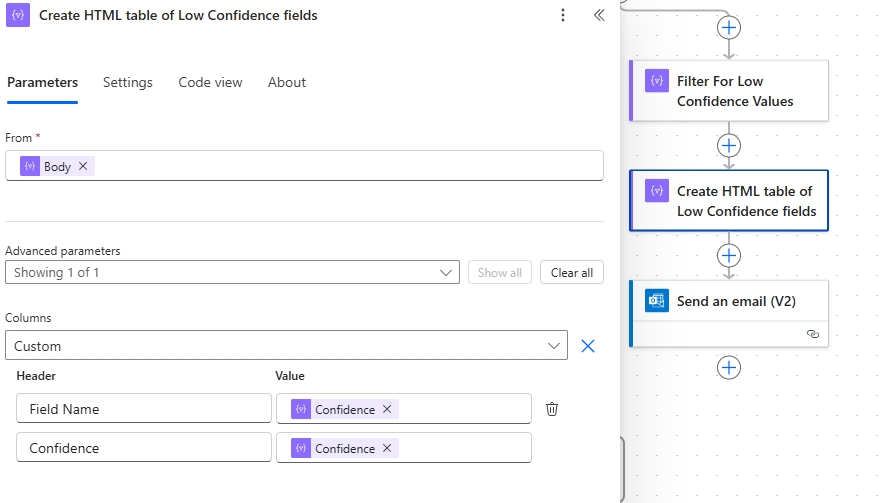
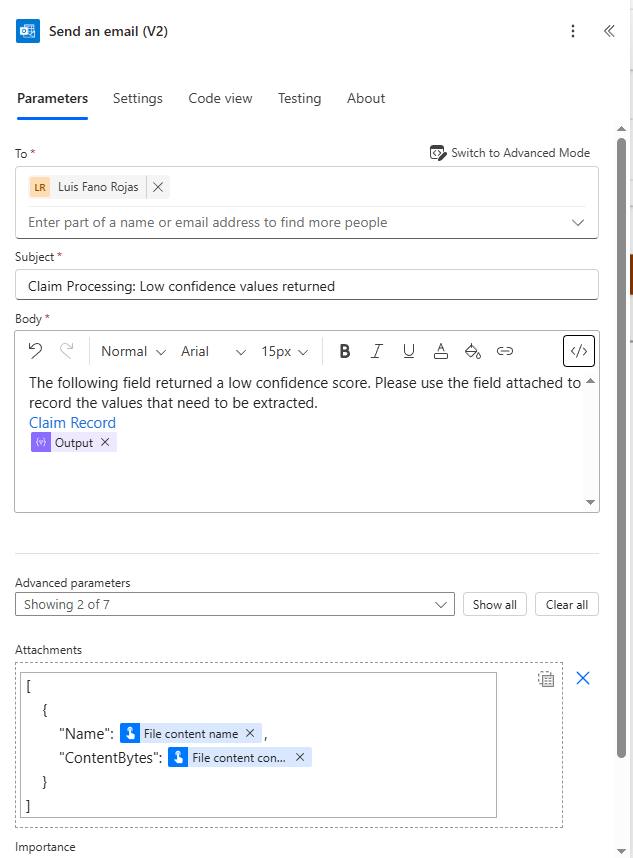
In this sample email, we notify the user that low-confidence values were extracted during the claim processing flow. The email includes a link to the relevant record, along with a list of fields that returned low-confidence scores. Additionally, a copy of the processed document is attached so the user can manually retrieve and verify the necessary fields.
In summary, working with document processing actions doesn’t have to complicate your Power Automate flows. By organizing extracted fields into a structured array, you can efficiently manage high and low-confidence values using either a granular or bulk processing approach. Whether you’re updating records directly with high-confidence data or notifying users to review uncertain fields, these techniques help create more maintainable, scalable, and user-friendly automation.
Try out both approaches in your own flows and see which one works best for your scenario. Have questions, ideas, or tips of your own? Drop a comment below!
 Power Platform Tips & Tricks